> ## Documentation Index
> Fetch the complete documentation index at: https://docs.guin.ai/llms.txt
> Use this file to discover all available pages before exploring further.
# Auto-frame and layouts
> Change the canvas and Guin reframes every shot to keep the subject in view. Choose a layout per section of the video.
Footage filmed in landscape rarely fits a vertical post without cutting someone out of the frame. When you change the canvas or the layout, Guin reframes each shot to keep the subject in view, so you do not have to reposition every shot by hand.
## Change the canvas
The canvas is the shape of your finished video. Set it from the canvas menu in the top bar of the Smart Editor.
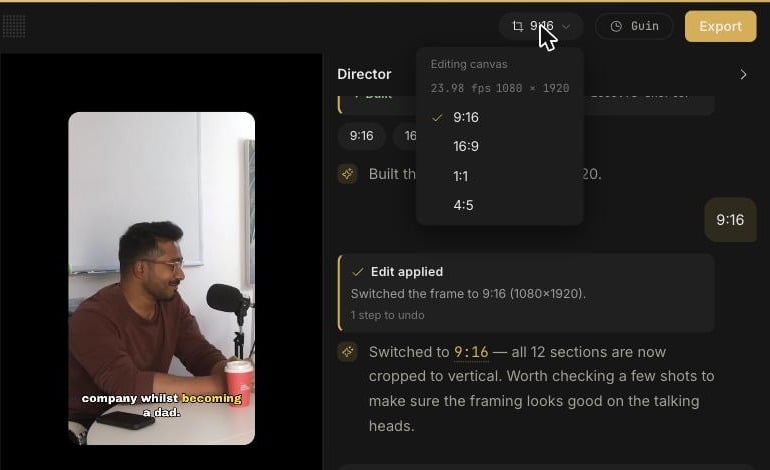 | Canvas | Size | Good for |
| -------- | ----------- | -------------------------------- |
| **9:16** | 1080 × 1920 | Reels, TikTok, Shorts |
| **16:9** | 1920 × 1080 | YouTube, websites, presentations |
| **1:1** | 1080 × 1080 | Square feed posts |
| **4:5** | 1080 × 1350 | Instagram and Facebook feed |
You can also ask the Director: `Make it 9:16`. After a switch it is worth checking a few shots to confirm the framing, especially wide shots with more than one person.
## Choose a layout
A layout decides how a section of the video fills the canvas. Layouts sit on their own **Layout** track, so different sections of one video can use different layouts.
| Canvas | Size | Good for |
| -------- | ----------- | -------------------------------- |
| **9:16** | 1080 × 1920 | Reels, TikTok, Shorts |
| **16:9** | 1920 × 1080 | YouTube, websites, presentations |
| **1:1** | 1080 × 1080 | Square feed posts |
| **4:5** | 1080 × 1350 | Instagram and Facebook feed |
You can also ask the Director: `Make it 9:16`. After a switch it is worth checking a few shots to confirm the framing, especially wide shots with more than one person.
## Choose a layout
A layout decides how a section of the video fills the canvas. Layouts sit on their own **Layout** track, so different sections of one video can use different layouts.
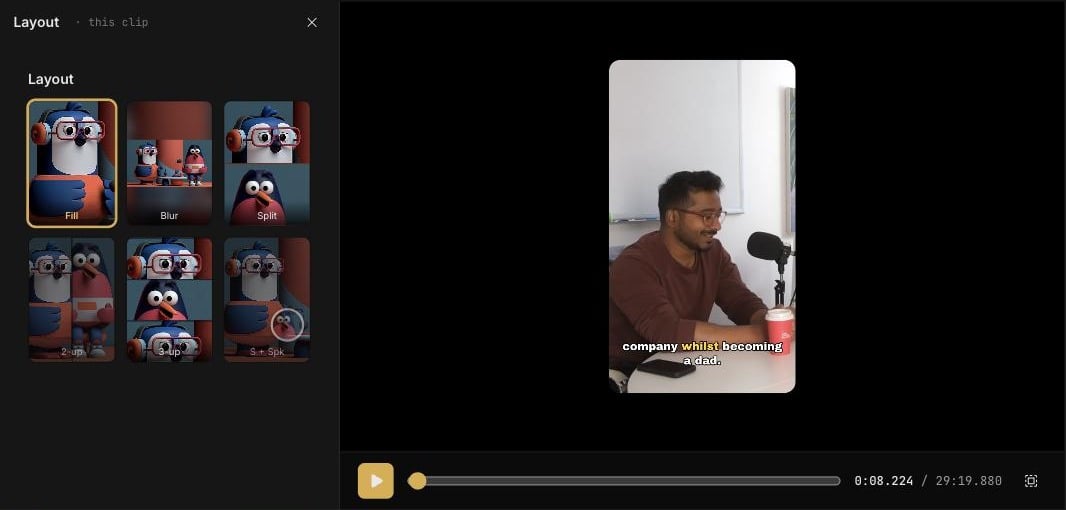 The **Layout** panel opens on the left, scoped to **this clip**.
The preview updates straight away.
| Layout | What it does |
| ----------- | ------------------------------------------------------------------------------------------------ |
| **Fill** | Fills the canvas with the shot, cropped around the subject. |
| **Blur** | Shows the whole shot, with a blurred copy filling the space around it. |
| **Split** | Stacks two framings, worked out from the faces in the shot. Good for two people in conversation. |
| **3-up** | Stacks three framings. |
| **S + Spk** | Screen plus speaker: a screen capture with the presenter alongside. |
Split layouts are available on a 9:16 canvas.
## Reframe a single shot
If one shot is framed wrong, ask the Director: `Keep her centred in the second shot`. It reframes that shot and confirms with a **Reframed** note when it is done.
The **Layout** panel opens on the left, scoped to **this clip**.
The preview updates straight away.
| Layout | What it does |
| ----------- | ------------------------------------------------------------------------------------------------ |
| **Fill** | Fills the canvas with the shot, cropped around the subject. |
| **Blur** | Shows the whole shot, with a blurred copy filling the space around it. |
| **Split** | Stacks two framings, worked out from the faces in the shot. Good for two people in conversation. |
| **3-up** | Stacks three framings. |
| **S + Spk** | Screen plus speaker: a screen capture with the presenter alongside. |
Split layouts are available on a 9:16 canvas.
## Reframe a single shot
If one shot is framed wrong, ask the Director: `Keep her centred in the second shot`. It reframes that shot and confirms with a **Reframed** note when it is done.