> ## Documentation Index
> Fetch the complete documentation index at: https://docs.guin.ai/llms.txt
> Use this file to discover all available pages before exploring further.
# A tour of the Smart Editor
> What each part of the Smart Editor does: the top bar, the side panels, the preview, the Director, and the timeline.
The Smart Editor keeps everything for finishing a video in one place, so you never have to export timestamps into another app to get the job done. This page is a map of the screen. For a walkthrough, see [Edit with the Director](/guides/editing-clips).
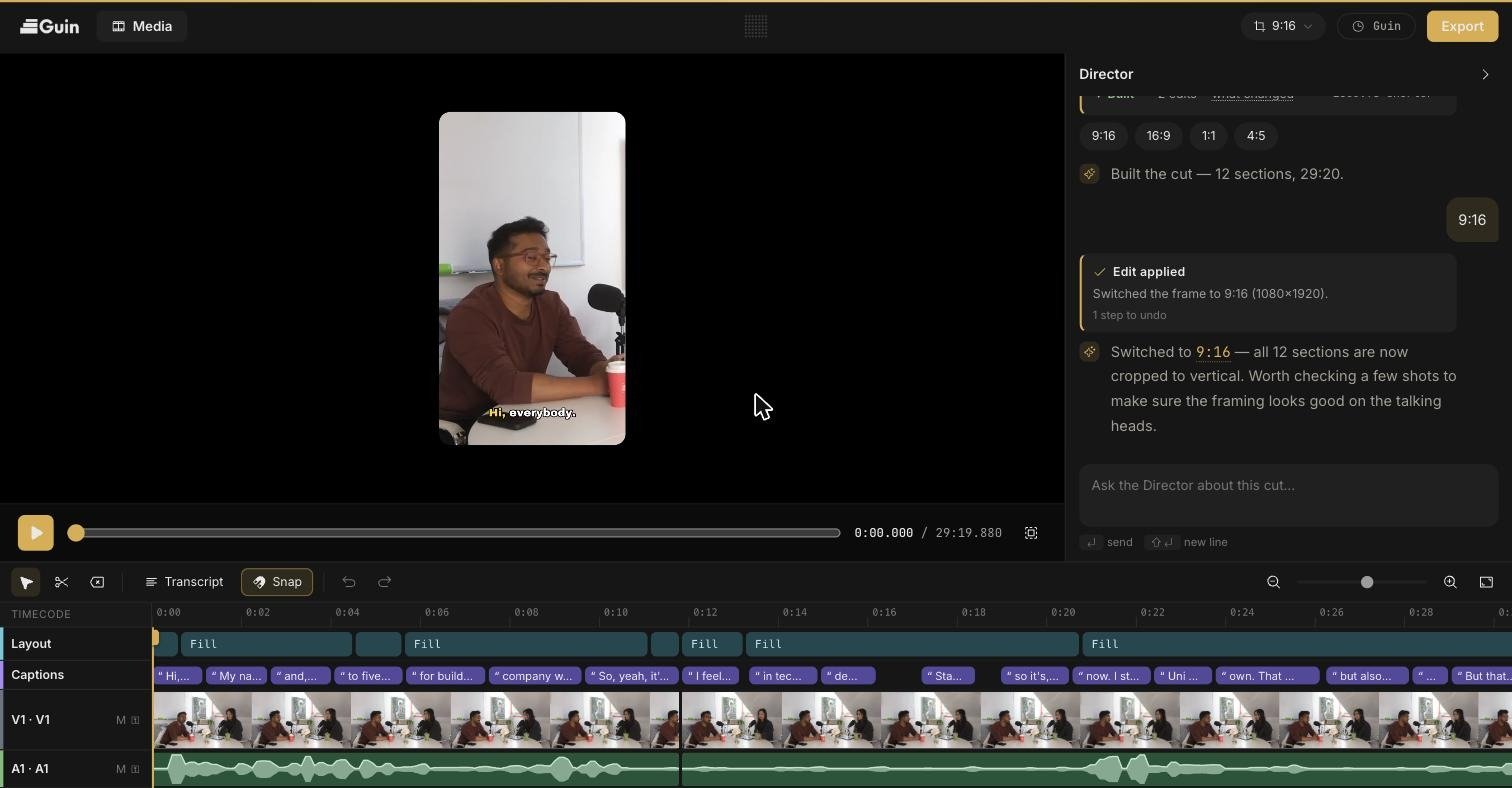 ## Top bar
| | |
| -------------------------------------- | --------------------------------------------------------------------------------------------- |
| **Guin logo** | Back to Home. |
| **Media** | Opens the footage in this project. |
| **Canvas menu** (for example **9:16**) | Sets the shape of the video. See [Auto-frame and layouts](/features/auto-frame). |
| **Plan chip** | Your plan and usage. It also tells you when you are running low or a payment needs attention. |
| **Export** | Opens the export dialog. See [Export](/guides/exporting-and-publishing). |
Your work saves automatically. Look for **All changes saved** in the top bar.
## Side panels
The panel on the left changes with what you select.
| You click | The panel shows |
| ---------------------------------- | ------------------------------------------------------------------------------- |
| **Media** in the top bar | The files in this project, with **Upload** and **Library** buttons to add more. |
| A section on the **Layout** track | Layout cards for that section. |
| A phrase on the **Captions** track | Caption styles, font, colours, and position. |
| An audio clip | A **Volume** slider for that clip. |
## Top bar
| | |
| -------------------------------------- | --------------------------------------------------------------------------------------------- |
| **Guin logo** | Back to Home. |
| **Media** | Opens the footage in this project. |
| **Canvas menu** (for example **9:16**) | Sets the shape of the video. See [Auto-frame and layouts](/features/auto-frame). |
| **Plan chip** | Your plan and usage. It also tells you when you are running low or a payment needs attention. |
| **Export** | Opens the export dialog. See [Export](/guides/exporting-and-publishing). |
Your work saves automatically. Look for **All changes saved** in the top bar.
## Side panels
The panel on the left changes with what you select.
| You click | The panel shows |
| ---------------------------------- | ------------------------------------------------------------------------------- |
| **Media** in the top bar | The files in this project, with **Upload** and **Library** buttons to add more. |
| A section on the **Layout** track | Layout cards for that section. |
| A phrase on the **Captions** track | Caption styles, font, colours, and position. |
| An audio clip | A **Volume** slider for that clip. |
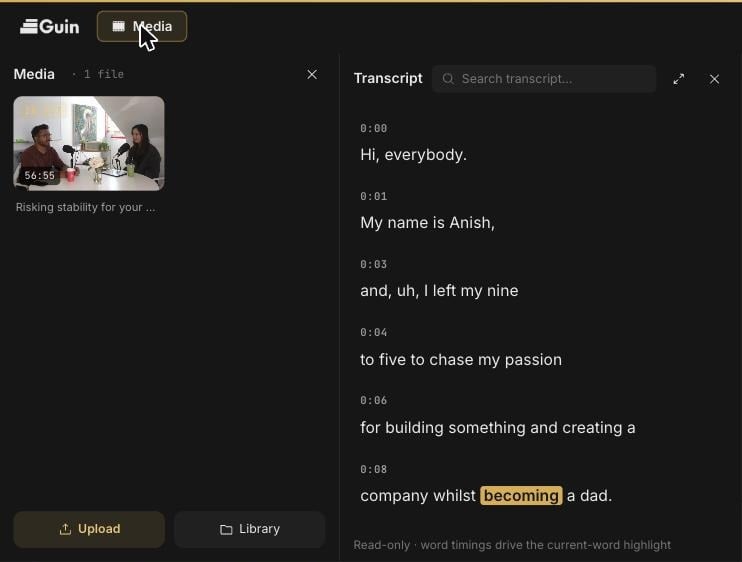 The **Transcript** panel opens beside it when you click **Transcript** in the timeline toolbar. It appears once your cut has captions.
## Preview
The preview shows the video exactly as it will export: framing, layout, and captions included. Use the play button and scrubber underneath to move through it.
## Director
The Director panel on the right is a chat with a co-editor that can see your footage and your cut. Ask it for a change and it makes the edit, then shows an **Edit applied** card describing what it did. Every Director edit is a normal step in your undo history.
## Timeline
The timeline runs across the bottom, with thumbnails on the video track and a waveform on the audio track.
| Track | What it holds |
| ------------ | -------------------------------------------- |
| **Layout** | Which layout each section of the video uses. |
| **Captions** | One block per caption phrase. |
| **V1** | Your video clips. |
| **A1** | Your audio. |
The toolbar has **Select** (`V`), **Blade** (`B`), **Ripple delete** (`⌫`), **Transcript**, **Snap** (`S`), **Undo** (`⌘Z`), and **Redo** (`⇧⌘Z`). On the right are zoom out, a zoom slider, zoom in, and zoom to fit.
## You or the Director
Most things in the editor can be done two ways: by you, with a control, or by the Director, when you ask. Use whichever is quicker. A good rhythm is to ask the Director for the big moves, such as structure, pacing, and captions, and use the timeline for the last few frames.
The **Transcript** panel opens beside it when you click **Transcript** in the timeline toolbar. It appears once your cut has captions.
## Preview
The preview shows the video exactly as it will export: framing, layout, and captions included. Use the play button and scrubber underneath to move through it.
## Director
The Director panel on the right is a chat with a co-editor that can see your footage and your cut. Ask it for a change and it makes the edit, then shows an **Edit applied** card describing what it did. Every Director edit is a normal step in your undo history.
## Timeline
The timeline runs across the bottom, with thumbnails on the video track and a waveform on the audio track.
| Track | What it holds |
| ------------ | -------------------------------------------- |
| **Layout** | Which layout each section of the video uses. |
| **Captions** | One block per caption phrase. |
| **V1** | Your video clips. |
| **A1** | Your audio. |
The toolbar has **Select** (`V`), **Blade** (`B`), **Ripple delete** (`⌫`), **Transcript**, **Snap** (`S`), **Undo** (`⌘Z`), and **Redo** (`⇧⌘Z`). On the right are zoom out, a zoom slider, zoom in, and zoom to fit.
## You or the Director
Most things in the editor can be done two ways: by you, with a control, or by the Director, when you ask. Use whichever is quicker. A good rhythm is to ask the Director for the big moves, such as structure, pacing, and captions, and use the timeline for the last few frames.