> ## Documentation Index
> Fetch the complete documentation index at: https://docs.guin.ai/llms.txt
> Use this file to discover all available pages before exploring further.
# Captions
> Guin captions your video from the transcript. Pick a style, then adjust font, colours, emphasis, and position for the whole video or a single phrase.
Guin builds captions from the transcript, timed to each word, and burns them into the video when you export. You choose how they look.
 ## Open the Captions panel
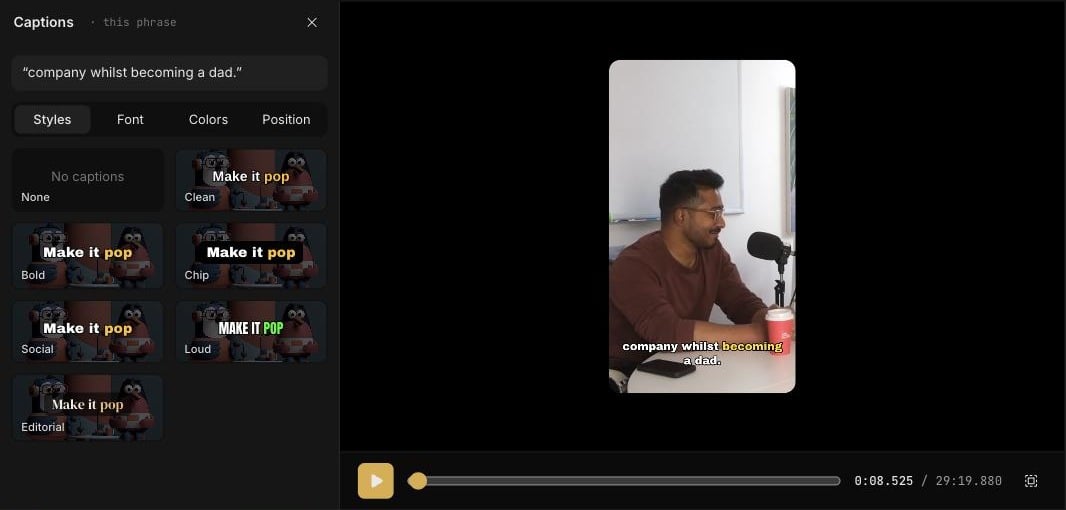
In the Smart Editor, click any phrase on the **Captions** track. The **Captions** panel opens on the left with four tabs: **Styles**, **Font**, **Colors**, and **Position**.
Choose what your changes apply to:
* **Whole video** changes every caption.
* **This phrase** changes only the phrase you selected, so you can make one line stand out.
## Styles
A style sets the font, weight, colours, and pacing in one click.
| Style | Look |
| ------------- | ------------------------------------------------------------------- |
| **None** | No captions. |
| **Clean** | Light and unobtrusive. Easy to read without drawing attention. |
| **Bold** | Heavy type with the current word highlighted. The default. |
| **Chip** | Text on a solid backdrop, so it stays readable over busy footage. |
| **Social** | Heavy, fast-paced captions in the style common on Reels and TikTok. |
| **Loud** | Tall, condensed capitals with a bright highlight. |
| **Editorial** | A serif face for a calmer, more considered feel. |
## Fine-tune
| Tab | What you can change |
| ------------ | ------------------------------------------------------------------------------------------------------------------------------------------------------------------------------------------------------------------------------- |
| **Font** | Typeface and size, and letter case: **As spoken** or **CAPS**. |
| **Colors** | **Text color**, **Active word color**, **Outline color**, and **Backdrop color**. Use the eyedropper to **Pick from the video**. Turn the outline and backdrop on or off, and set the shadow to **Off**, **Soft**, or **Hard**. |
| **Position** | **Top center**, **Lower third**, **Bottom center**, **Lower left**, or **Lower right**. |
The active word, which is the word being spoken, can be emphasised by **Color**, by **Grow**, or left **Off**.
## Ask the Director
You can also set captions in chat:
* `Captions on`
* `Use the Social style`
* `Make the captions smaller and move them to the lower third`
* `Captions for LinkedIn`
If you name a platform or a mood, the Director picks a matching style. Instagram and TikTok get **Social**, YouTube gets **Bold**, and LinkedIn gets **Chip**.
## Fix missing captions
If part of a clip has no captions, the panel shows a note such as *A stretch of this clip is missing captions.* Click **Repair captions** to fill the gap.
## Remove a caption
Select the **Ripple delete** tool and click a phrase on the Captions track to delete it.
## Captions in other editors
When you export an **Editor project** for Premiere Pro, Final Cut Pro, or DaVinci Resolve, the download includes your captions as an `.srt` file. See [Export](/guides/exporting-and-publishing).
## Open the Captions panel
In the Smart Editor, click any phrase on the **Captions** track. The **Captions** panel opens on the left with four tabs: **Styles**, **Font**, **Colors**, and **Position**.
Choose what your changes apply to:
* **Whole video** changes every caption.
* **This phrase** changes only the phrase you selected, so you can make one line stand out.
## Styles
A style sets the font, weight, colours, and pacing in one click.
| Style | Look |
| ------------- | ------------------------------------------------------------------- |
| **None** | No captions. |
| **Clean** | Light and unobtrusive. Easy to read without drawing attention. |
| **Bold** | Heavy type with the current word highlighted. The default. |
| **Chip** | Text on a solid backdrop, so it stays readable over busy footage. |
| **Social** | Heavy, fast-paced captions in the style common on Reels and TikTok. |
| **Loud** | Tall, condensed capitals with a bright highlight. |
| **Editorial** | A serif face for a calmer, more considered feel. |
## Fine-tune
| Tab | What you can change |
| ------------ | ------------------------------------------------------------------------------------------------------------------------------------------------------------------------------------------------------------------------------- |
| **Font** | Typeface and size, and letter case: **As spoken** or **CAPS**. |
| **Colors** | **Text color**, **Active word color**, **Outline color**, and **Backdrop color**. Use the eyedropper to **Pick from the video**. Turn the outline and backdrop on or off, and set the shadow to **Off**, **Soft**, or **Hard**. |
| **Position** | **Top center**, **Lower third**, **Bottom center**, **Lower left**, or **Lower right**. |
The active word, which is the word being spoken, can be emphasised by **Color**, by **Grow**, or left **Off**.
## Ask the Director
You can also set captions in chat:
* `Captions on`
* `Use the Social style`
* `Make the captions smaller and move them to the lower third`
* `Captions for LinkedIn`
If you name a platform or a mood, the Director picks a matching style. Instagram and TikTok get **Social**, YouTube gets **Bold**, and LinkedIn gets **Chip**.
## Fix missing captions
If part of a clip has no captions, the panel shows a note such as *A stretch of this clip is missing captions.* Click **Repair captions** to fill the gap.
## Remove a caption
Select the **Ripple delete** tool and click a phrase on the Captions track to delete it.
## Captions in other editors
When you export an **Editor project** for Premiere Pro, Final Cut Pro, or DaVinci Resolve, the download includes your captions as an `.srt` file. See [Export](/guides/exporting-and-publishing).