> ## Documentation Index
> Fetch the complete documentation index at: https://docs.guin.ai/llms.txt
> Use this file to discover all available pages before exploring further.
# Make clips in Clip Studio
> Ask for a set of clips in plain words, approve the plan, follow the run, and refine every clip at once.
Clip Studio is the fastest way to turn footage into several publish-ready clips. You describe what you want once. Guin finds the moments, shows you a plan, and cuts each clip so it stands on its own.
 ## Ask for clips
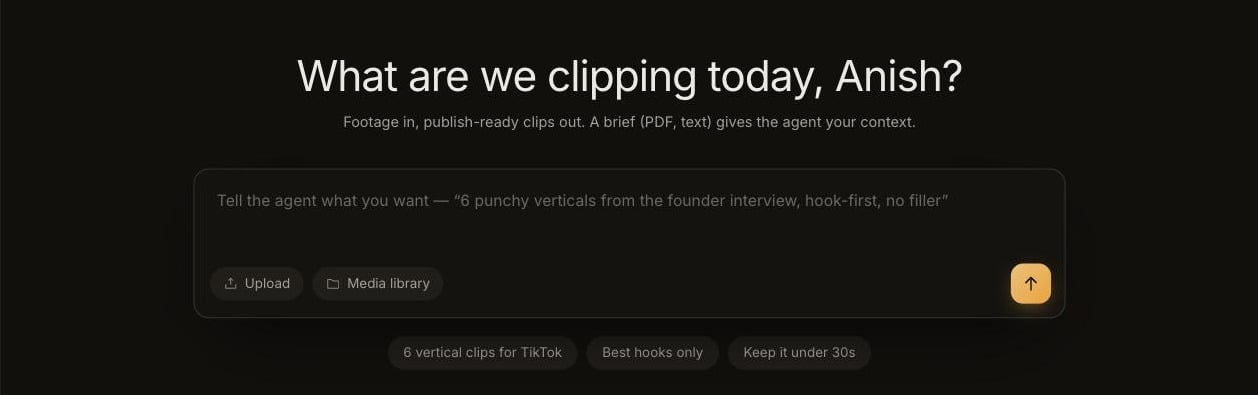
Click **Clip Studio** in the sidebar, or the **Clip Studio** card on Home.
Click **Upload**, or pick from **Media library**. You can also start from one of your recent files shown under the prompt box.
Say how many clips, what shape, and what matters. The suggestion chips under the box (**6 vertical clips for TikTok**, **Best hooks only**, **Keep it under 30s**) add common asks in one click.
If you have context Guin should know, such as a campaign brief, key messages, or names to get right, attach it as a PDF, TXT, or Markdown file. Keep it short: briefs are limited to 50 KB.
Guin comes back with a plan card listing the clips it intends to make. Approve it, or reply with what to change first.
## Write a good request
Describe the outcome, not the timestamps.
| Instead of | Try |
| ------------------ | ---------------------------------------------------------------------- |
| `Cut 3:12 to 3:40` | `A 30 second clip of the part where she explains pricing` |
| `Make some clips` | `6 punchy verticals from the founder interview, hook-first, no filler` |
| `Shorts` | `4 vertical clips under 30s, one per customer story` |
Useful things to include:
* **How many** clips you want.
* **The shape**: vertical (9:16) or landscape (16:9).
* **Length**, if you have a limit.
* **What to focus on**: a topic, a person, a moment, a feeling.
* **What to avoid**: filler, a shaky section, a topic that is off limits.
## Follow the run
While Guin works, the run shows which stage it is in.
| Stage | What is happening |
| --------------------------------- | ------------------------------------------------------------------------ |
| **Reading the video** | Guin reads the chapters and searches the transcript, visuals, and audio. |
| **Choosing the moments** | It picks the moments that fit your request and drafts the plan. |
| **Cutting, reframing & captions** | It cuts each clip, frames every shot for the canvas, and adds captions. |
You can stop a run at any time and resume it later. If your footage is still processing, the run waits for it and starts on its own.
When the run finishes you will see **Done** with the number of clips ready. If some clips could not be made, it tells you how many it finished.
## Refine the clips
Reply in the same conversation. A request applies across all the clips unless you name one.
* `Punchier hook on the first clip`
* `Tighter captions on the second`
* `Drop the shaky shot from the third`
* `Make them all landscape`
Each clip can switch between **9:16** and **16:9** on its card. For frame-level changes, open the clip in the Smart Editor.
Trim, change layouts, restyle captions, and work with the Director.
## Ask for clips
Click **Clip Studio** in the sidebar, or the **Clip Studio** card on Home.
Click **Upload**, or pick from **Media library**. You can also start from one of your recent files shown under the prompt box.
Say how many clips, what shape, and what matters. The suggestion chips under the box (**6 vertical clips for TikTok**, **Best hooks only**, **Keep it under 30s**) add common asks in one click.
If you have context Guin should know, such as a campaign brief, key messages, or names to get right, attach it as a PDF, TXT, or Markdown file. Keep it short: briefs are limited to 50 KB.
Guin comes back with a plan card listing the clips it intends to make. Approve it, or reply with what to change first.
## Write a good request
Describe the outcome, not the timestamps.
| Instead of | Try |
| ------------------ | ---------------------------------------------------------------------- |
| `Cut 3:12 to 3:40` | `A 30 second clip of the part where she explains pricing` |
| `Make some clips` | `6 punchy verticals from the founder interview, hook-first, no filler` |
| `Shorts` | `4 vertical clips under 30s, one per customer story` |
Useful things to include:
* **How many** clips you want.
* **The shape**: vertical (9:16) or landscape (16:9).
* **Length**, if you have a limit.
* **What to focus on**: a topic, a person, a moment, a feeling.
* **What to avoid**: filler, a shaky section, a topic that is off limits.
## Follow the run
While Guin works, the run shows which stage it is in.
| Stage | What is happening |
| --------------------------------- | ------------------------------------------------------------------------ |
| **Reading the video** | Guin reads the chapters and searches the transcript, visuals, and audio. |
| **Choosing the moments** | It picks the moments that fit your request and drafts the plan. |
| **Cutting, reframing & captions** | It cuts each clip, frames every shot for the canvas, and adds captions. |
You can stop a run at any time and resume it later. If your footage is still processing, the run waits for it and starts on its own.
When the run finishes you will see **Done** with the number of clips ready. If some clips could not be made, it tells you how many it finished.
## Refine the clips
Reply in the same conversation. A request applies across all the clips unless you name one.
* `Punchier hook on the first clip`
* `Tighter captions on the second`
* `Drop the shaky shot from the third`
* `Make them all landscape`
Each clip can switch between **9:16** and **16:9** on its card. For frame-level changes, open the clip in the Smart Editor.
Trim, change layouts, restyle captions, and work with the Director.