> ## Documentation Index
> Fetch the complete documentation index at: https://docs.guin.ai/llms.txt
> Use this file to discover all available pages before exploring further.
# Export your video
> Render a video file up to 4K, or download a project for Premiere Pro, Final Cut Pro, or DaVinci Resolve.
When you are happy with a video, click **Export** in the top right of the editor. You can export a finished video file, or an editor project to keep working in another app.
Guin does not post to social platforms for you. You download the file and publish it where you like.
## Export a video file
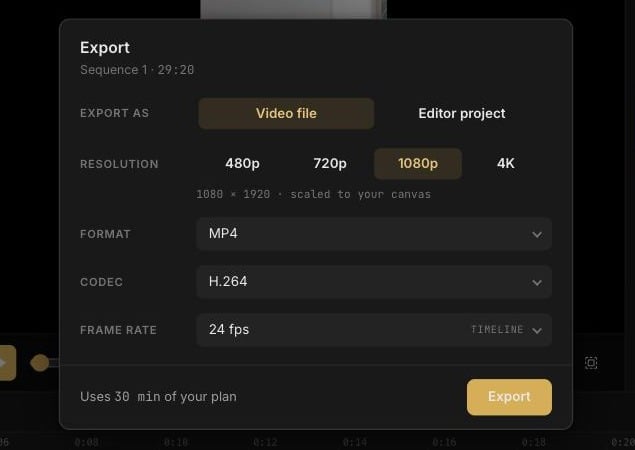 Under **Export as**, keep **Video file** selected.
**480p**, **720p**, **1080p**, or **4K**. The line underneath shows the exact pixel size for your canvas. 1080p on a 9:16 canvas is 1080 × 1920.
The defaults (MP4, H.264, and your timeline's frame rate) are right for almost every platform.
The dialog closes and the render runs in the background. You can keep working. When it finishes, download the file from **Recent exports**.
Download your export soon after it finishes. Rendered files are kept for about an hour and then removed. You can export again at any time.
### Options
| Setting | Choices |
| -------------- | ----------------------------------------------------------------------------------------------- |
| **Resolution** | 480p, 720p, 1080p, 4K |
| **Format** | MP4, MOV, WebM |
| **Codec** | MP4: H.264 or H.265 / HEVC (smaller files). MOV: H.264 or ProRes 422 (larger files). WebM: VP9. |
| **Frame rate** | 24, 25, 30, 50, or 60 fps. Your timeline's own rate is marked **Timeline**. |
The shape of the export comes from the canvas you set in the editor, not from this dialog. To export the same video in another shape, change the canvas, check the framing, and export again.
4K is included with paid plans and is rendered from your original files. On the free plan, exports go up to 1080p and carry a small Guin watermark in the corner.
### What counts toward your plan
The bottom of the dialog shows how many minutes the export will use, for example **Uses 30 min of your plan**. Only exported video counts. Chatting, re-edits, and revisions are not counted. See [Plans and pricing](/account/plans-and-pricing).
## Export an editor project
Choose **Editor project** to hand the cut to another editing app with your trims and structure intact.
Under **Export as**, keep **Video file** selected.
**480p**, **720p**, **1080p**, or **4K**. The line underneath shows the exact pixel size for your canvas. 1080p on a 9:16 canvas is 1080 × 1920.
The defaults (MP4, H.264, and your timeline's frame rate) are right for almost every platform.
The dialog closes and the render runs in the background. You can keep working. When it finishes, download the file from **Recent exports**.
Download your export soon after it finishes. Rendered files are kept for about an hour and then removed. You can export again at any time.
### Options
| Setting | Choices |
| -------------- | ----------------------------------------------------------------------------------------------- |
| **Resolution** | 480p, 720p, 1080p, 4K |
| **Format** | MP4, MOV, WebM |
| **Codec** | MP4: H.264 or H.265 / HEVC (smaller files). MOV: H.264 or ProRes 422 (larger files). WebM: VP9. |
| **Frame rate** | 24, 25, 30, 50, or 60 fps. Your timeline's own rate is marked **Timeline**. |
The shape of the export comes from the canvas you set in the editor, not from this dialog. To export the same video in another shape, change the canvas, check the framing, and export again.
4K is included with paid plans and is rendered from your original files. On the free plan, exports go up to 1080p and carry a small Guin watermark in the corner.
### What counts toward your plan
The bottom of the dialog shows how many minutes the export will use, for example **Uses 30 min of your plan**. Only exported video counts. Chatting, re-edits, and revisions are not counted. See [Plans and pricing](/account/plans-and-pricing).
## Export an editor project
Choose **Editor project** to hand the cut to another editing app with your trims and structure intact.
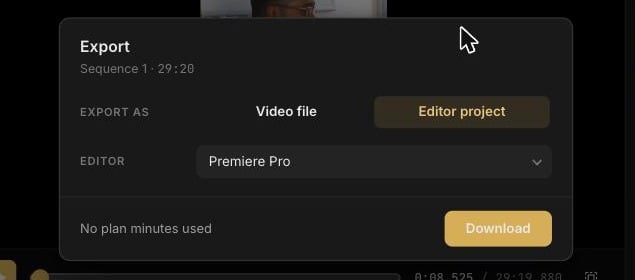 | Editor | What you get |
| ------------------- | ----------------------- |
| **Premiere Pro** | An XML timeline (XMEML) |
| **Final Cut Pro** | An FCPXML timeline |
| **DaVinci Resolve** | An FCPXML timeline |
The download is a zip with the timeline file, a short report on what carried over, and an `.srt` caption file if your video has captions. A project export renders nothing, so it uses **no plan minutes**.
## Match the platform
| Where it is going | Canvas |
| -------------------------------- | ------ |
| Reels, TikTok, Shorts | 9:16 |
| YouTube, websites, presentations | 16:9 |
| Square feed posts | 1:1 |
| Instagram and Facebook feed | 4:5 |
| Editor | What you get |
| ------------------- | ----------------------- |
| **Premiere Pro** | An XML timeline (XMEML) |
| **Final Cut Pro** | An FCPXML timeline |
| **DaVinci Resolve** | An FCPXML timeline |
The download is a zip with the timeline file, a short report on what carried over, and an `.srt` caption file if your video has captions. A project export renders nothing, so it uses **no plan minutes**.
## Match the platform
| Where it is going | Canvas |
| -------------------------------- | ------ |
| Reels, TikTok, Shorts | 9:16 |
| YouTube, websites, presentations | 16:9 |
| Square feed posts | 1:1 |
| Instagram and Facebook feed | 4:5 |