

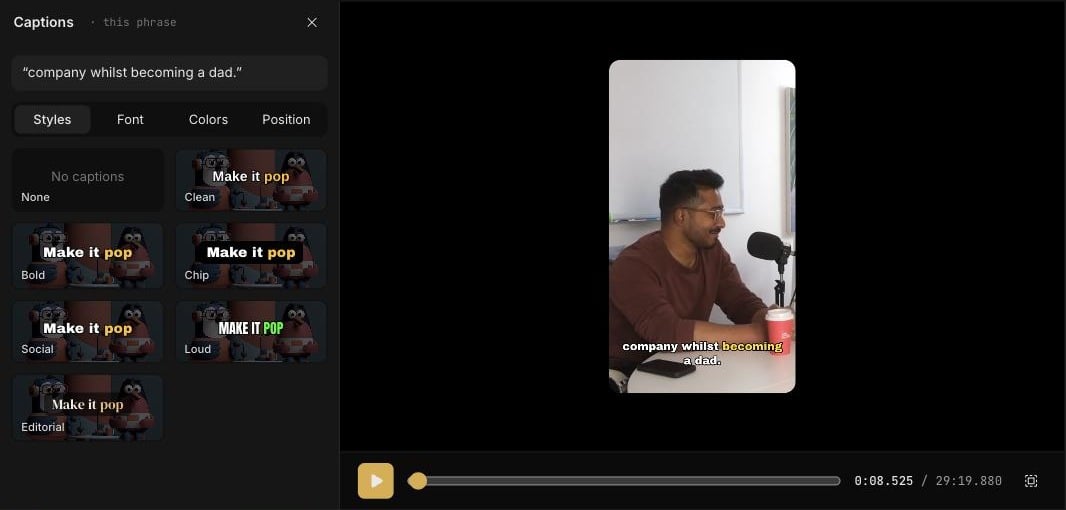
Open the Captions panel
In the Smart Editor, click any phrase on the Captions track. The Captions panel opens on the left with four tabs: Styles, Font, Colors, and Position. Choose what your changes apply to:- Whole video changes every caption.
- This phrase changes only the phrase you selected, so you can make one line stand out.
Styles
A style sets the font, weight, colours, and pacing in one click.Fine-tune
The active word, which is the word being spoken, can be emphasised by Color, by Grow, or left Off.
Ask the Director
You can also set captions in chat:Captions onUse the Social styleMake the captions smaller and move them to the lower thirdCaptions for LinkedIn
Fix missing captions
If part of a clip has no captions, the panel shows a note such as A stretch of this clip is missing captions. Click Repair captions to fill the gap.Remove a caption
Select the Ripple delete tool and click a phrase on the Captions track to delete it.Captions in other editors
When you export an Editor project for Premiere Pro, Final Cut Pro, or DaVinci Resolve, the download includes your captions as an.srt file. See Export.