

Start a video
1
Open the Editor
Click Editor in the sidebar, or the Smart Editor card on Home.
2
Add footage
Click Upload, drag files onto the page, or pick from Media library.
3
Tell the Director what you are making
For example:
a 45s cut of the interview, captions on. The chips under the box (A tight 60s cut, Cut the silences, Captions on, Hook first) cover common starting points.4
Approve the plan
The Director reads the footage for a story and replies with a Proposed cut. Click Approve & build to have it assemble the timeline, or reply to change the plan first.
Ask for changes
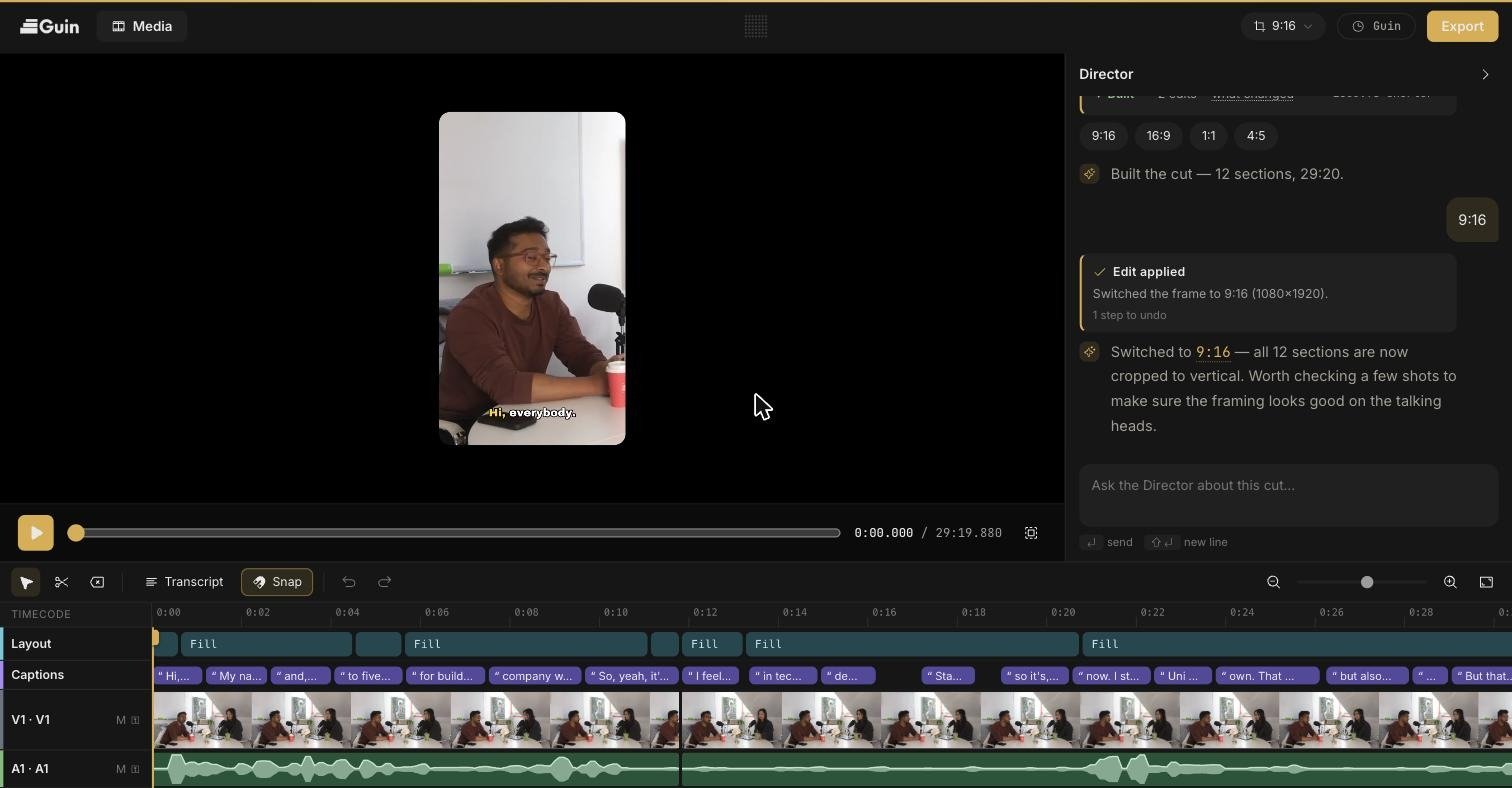
Type in the Ask the Director about this cut… box. The Director tells you what it is doing as it works, such as Searching the transcript…, Looking at the footage…, or Tightening the pauses…, and finishes with an Edit applied card that says what changed. Things the Director can do:
When the Director refers to a moment, its reply includes Jump to this moment and Play this moment so you can check it against the footage.
Work on the timeline yourself
The timeline has a Layout track, a Captions track, your video, and your audio. The toolbar above it has the tools.
Right-click on the timeline and choose Restore removed footage to bring back what was cut out at that point.
Select an audio clip to set its Volume in the panel on the left. Double-click the slider to reset it.
Use the transcript
Click Transcript to open a word-by-word transcript beside the preview. It follows playback and highlights the current word.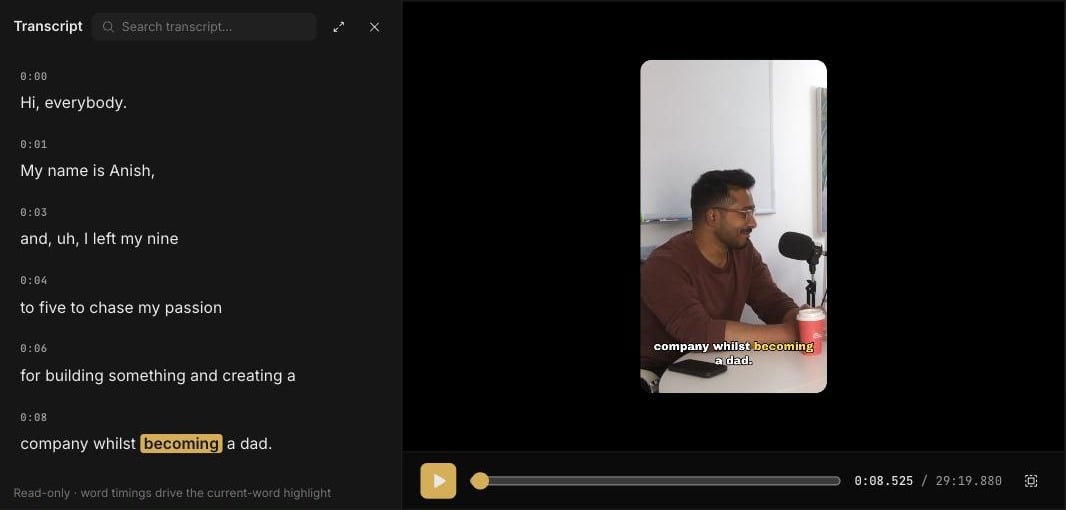
- Click any word to jump the playhead there.
- Use Search transcript… to find where something was said.
- With the Blade tool selected, click a word to cut the timeline at that word.
Change the canvas
The canvas menu in the top bar sets the shape of the video: 9:16, 16:9, 1:1, or 4:5. Guin reframes every shot when you switch. See Auto-frame and layouts. Your work saves as you go. The top bar shows Saving… and then All changes saved.Next steps
Captions
Styles, fonts, colours, and position.
Export
Render a video file or hand the project to another editor.