

1
Create your account
Sign up at studio.guin.ai. On your first visit Guin asks a few short questions about what you make, then takes you to Home.
2
Pick where to start
Home offers two doors.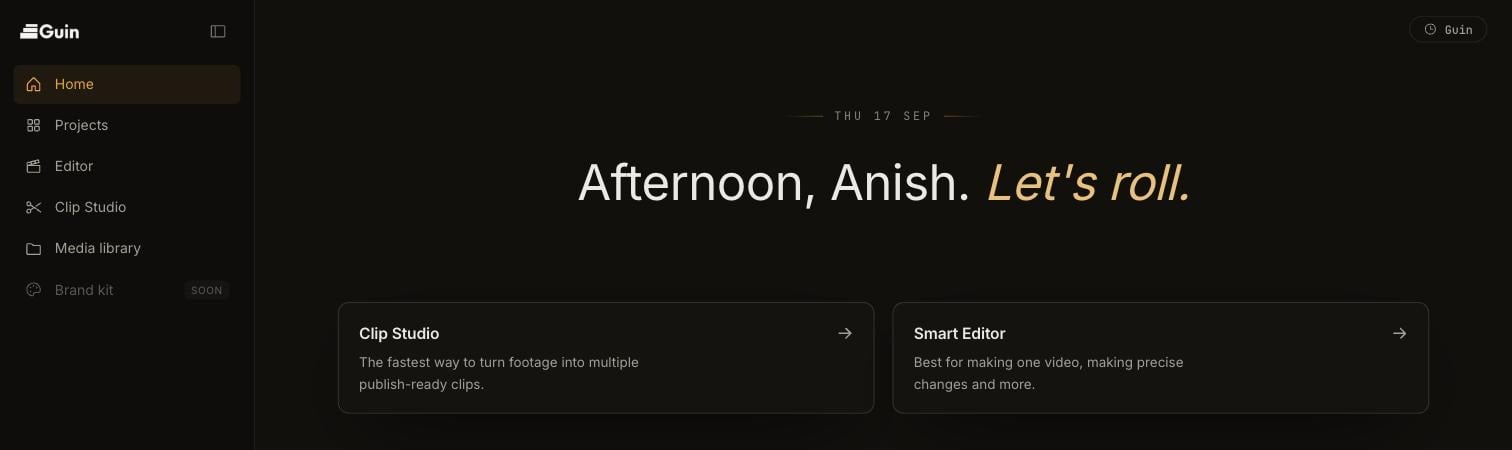
- Clip Studio is the fastest way to turn footage into several publish-ready clips.
- Smart Editor is best for making one video and for precise changes.
3
Add your footage
Click Upload and pick your files, or choose footage you have already uploaded from Media library. Messy footage is fine. You do not need to trim, rename, or sort anything first.Guin starts preparing each file as soon as it uploads: it transcribes the audio, finds the shots, and watches what happens on screen. Longer files take longer. You will see states such as transcribing, analyzing footage, and finding shots before a file shows as Ready.
4
Say what you need
Type what you want the way you would text a person. Name the number of clips, the platform or shape, and anything you care about.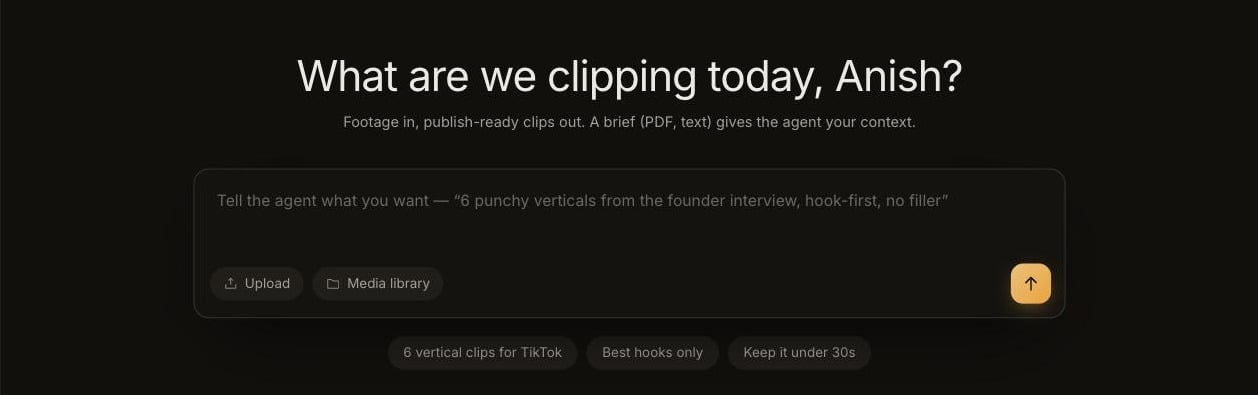
6 punchy verticals from the founder interview, hook-first, no filler.5
Approve the plan
Guin reads the footage, chooses the moments, and shows you a plan before it cuts anything. Read it, change it if it missed something, and approve it. Guin then cuts, reframes, and captions each clip.
6
Review and refine
Watch each clip. Ask for changes in plain words, such as
shorter, punchier hook on the first clip, or drop the shaky shot. For exact control, open the clip in the Smart Editor.7
Export
Click Export, choose a resolution and format, and download the file when the render finishes. Exporting is the point where a plan is required. See Plans and pricing.
Next steps
Make clips in Clip Studio
How to ask for clips and what each stage of a run means.
Edit in the Smart Editor
Work with the Director and the timeline.